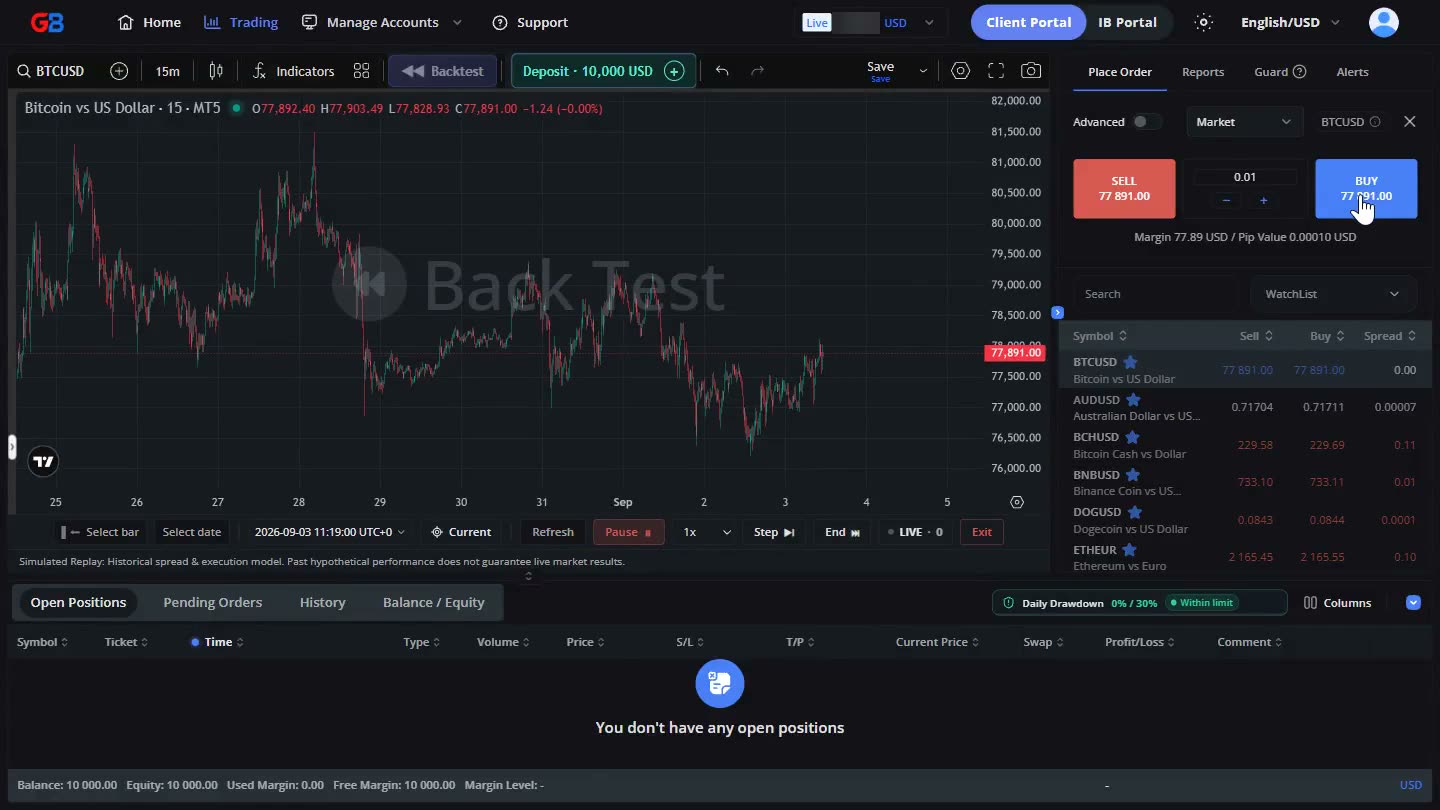
A trading idea is easy to believe in until you watch the market move against it. Backtest lets you find out on prices that have already happened: you pick a point in the past, press Play, and the chart replays candle by candle while you place simulated orders from the familiar order panel. It is a place to rehearse a strategy, practise your reactions to a move, or learn the platform without risking real funds.
Start a session in six steps
- Open Backtest. Click Backtest on the chart toolbar and accept the Backtest risk notice when prompted. A Back Test watermark appears on the chart and the Replay toolbar docks below it.
- Set your demo balance. Click the Deposit chip to choose the balance (10,000 USD by default) and the leverage (1:100 by default). The amount replaces the balance rather than adding to it, and it locks once the replay starts.
- Choose where to start. Use Select bar to click a starting candle on the chart, or Select date to jump to a date and time in UTC.
- Press Play. Candles replay at the speed you choose, from 0.25x to 10x. Pause at any time, or use Step to move one candle at a time.
- Place simulated trades. Backtest uses the familiar order panel and supports market, limit, stop, and stop limit orders, Stop Loss, Take Profit, and Risk Amount sizing against your demo balance.
- Review the run. Follow Open Positions, Pending Orders, History, the Balance / Equity curve, and Trading Stats. End fast-forwards to the finish. At completion, any positions still open are settled at the final simulated price and remaining pending orders are cancelled. When you leave an unfinished run, Exit lets you save it locally in this browser and continue later.
What stays separate from your live account
- Every Backtest order and trade record stays local to your browser. No simulated order is sent to the live trading server, and your live balance and real trading history remain unchanged.
- On the Backtest chart, live streaming prices are replaced by the historical replay for the session, and the watermark shows that you are in simulation.
- Live-account notifications continue to arrive through a separate LIVE counter; critical events can also appear in a banner so you can act without confusing them with the simulation.
How the simulation differs from live trading
Backtest uses one-minute historical candles as its simulation source, even when the chart displays a higher timeframe. In standard online Backtest, Bid and Ask are equal (zero spread), commission and swap are zero, and slippage, liquidity, market depth, and execution delays are not modelled. Market orders use the current simulated price, while pending orders trigger and fill at their configured levels as price follows a fixed path inside each one-minute candle. With the same historical data and identical trading actions, the model produces repeatable results. Negative equity does not trigger an automatic stop-out, so you can follow the complete price path.
These simplifications make Backtest useful for testing entries, exits, and risk discipline, but they can make results appear more favourable than live trading. When reviewing a run, allow for the trading costs and execution differences that the simulation does not model.
Go further with Backtest tools
Backtest also includes advanced tools that run locally against the demo balance and replay clock, without changing your live-account settings:
- Trader's Guard can apply supported risk rules to simulated orders and positions, helping you practise trading within defined limits.
- Scenarios let you organise Guard rules and run a commitment on the replay timeline, separately from any live scenario.
- Indicator Alerts can monitor SMA, EMA, and RSI conditions on replayed prices and notify you inside WebTrade without changing your live alerts.
- Auto SL/TP Protection can add missing Stop Loss or Take Profit levels after its simulated grace period, while SL to Target can move the Stop Loss as a position reaches configured profit milestones.
To learn how to configure these tools, understand their supported rules and limits, use replay shortcuts, or save and restore a session, visit the Backtest guide in the Support Center.
Backtest results are simulated and hypothetical. They cannot account for liquidity, execution delays, or the pressure of trading real money, and past simulated performance does not guarantee future results. Trading involves risk and losses can occur.